
Cycle counts & adjustments
Cycle counting is how you keep your inventory honest: physically count what's on the shelf, compare it to the system, and reconcile any difference back to Shopify. Stockwik makes this a quick, routine task.
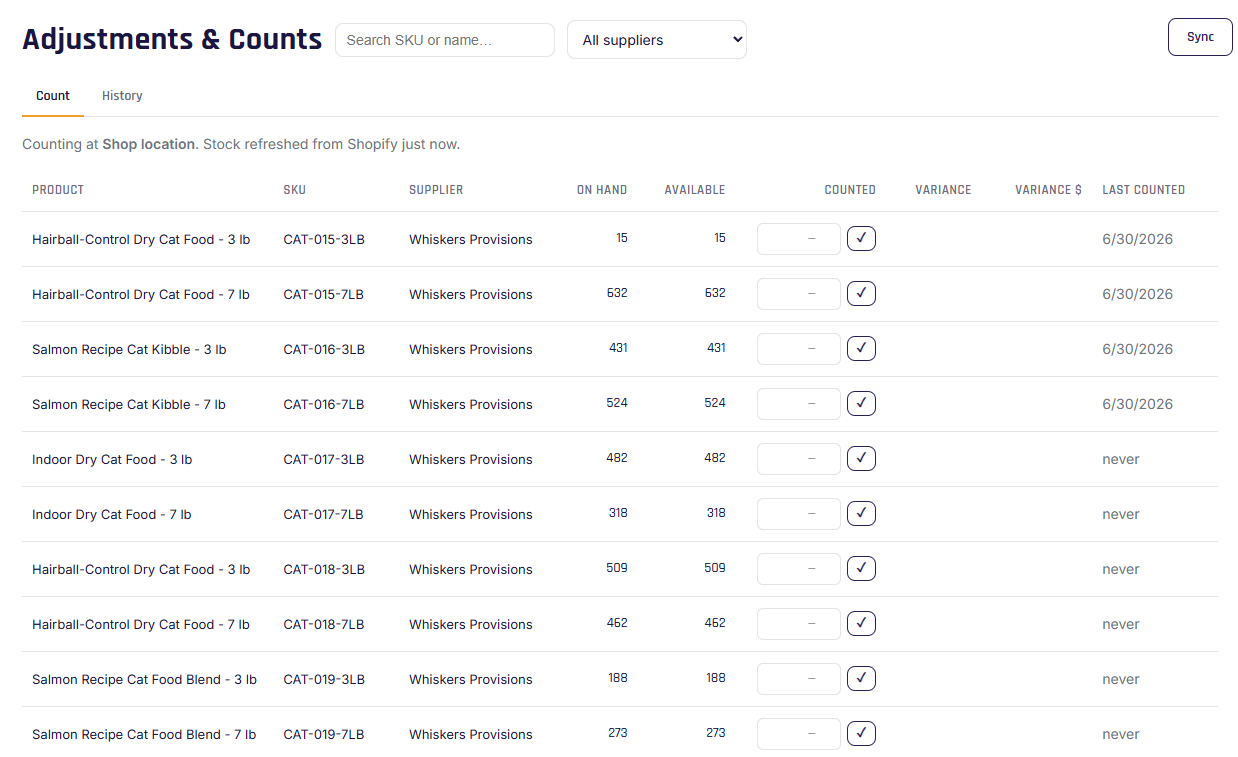
Running a count
- Open Adjustments. Stockwik refreshes your inventory from Shopify automatically, so you're counting against current numbers.
- Optionally filter by supplier to count one vendor's products at a time (a tidy way to cycle through your catalog), or search for specific items.
- For each product, either:
- enter the counted quantity you physically see, or
- click ✓ Correct to confirm the system number is right (no variance).
- As you go, variance and variance $ show any discrepancies (counted − on hand, valued at cost).
- When you're done, commit the count.
What happens on commit
Stockwik writes your counts to Shopify (setting on hand to your counted figure) and records the session.
It also uses a stale-guard: if a sale came in while you were counting and changed a product's on-hand, that line is rejected and re-shown with the fresh number so you can re-verify it — the rest of your counts still commit. This stops a mid-count sale from quietly clobbering your numbers.
Targeting what to count next ("Last counted")
You don't have to count everything at once. The Last counted column shows when each product was last counted — or "never" if it hasn't been yet. Use it to run a rolling rotation so nothing slips through:
- Click the Last counted column header to sort it ascending — never-counted items come first, then the ones counted longest ago.
- Work down from the top: count (or ✓ Correct) a batch, then commit.
- Because committing stamps the date on every item you touch — even the ones you just confirmed as correct — those items drop to the bottom, and the next-stalest items rise to the top.
So each pass naturally targets whatever's most overdue, and you can see at a glance what still needs attention. Count a little each day or week instead of shutting everything down for one big annual count.
History
The History tab lists past count sessions — date, location, who counted, lines, and net variance — and expands to show line-by-line detail. It's your audit trail for shrinkage over time (and feeds the Shrinkage report).