
Creating & editing purchase orders
Available on Growth and up.
Purchase orders (POs) are how you order stock from suppliers. You can create them automatically from your reorder list or build one by hand, then edit freely while they're still drafts.
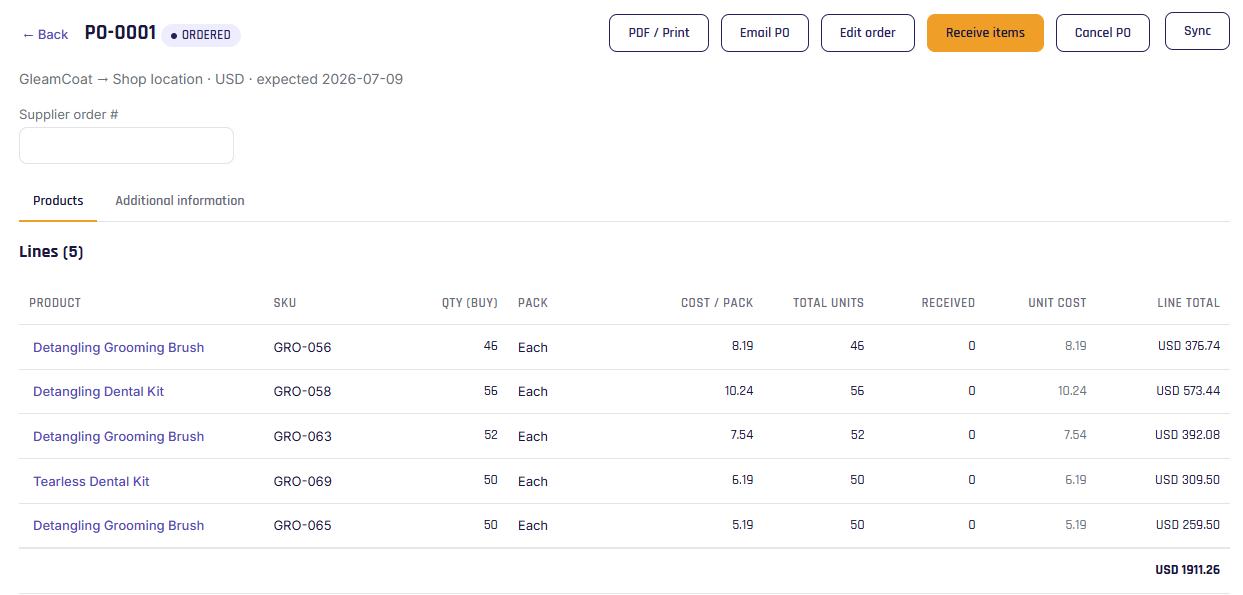
Two ways to create a PO
- From the Reorder page — select what to buy and Stockwik drafts one PO per supplier. See Create POs from suggestions.
- Manually — on the Purchase orders page, click + New PO, pick a supplier and destination location, and add lines yourself.
What's on a PO
Lines — for each product: quantity (in packs), the pack, cost per pack, total units, unit cost, and line total.
Header details (under additional info): a supplier order number, notes for the supplier (printed on the PO), and internal notes (for your team only). Payment terms and the expected delivery date come from the supplier.
The PO lifecycle
| Status | Meaning |
|---|---|
| Draft | Not yet sent. Fully editable — add/remove lines, change quantities and costs. |
| Ordered | Sent to the supplier; awaiting goods. |
| Partial | Some lines received; the rest still outstanding. |
| Received | Everything received. |
| Cancelled | Cancelled. |
Editing
- Drafts are fully editable. Use Save details to keep changes without sending.
- Once Ordered (or Partial), the lines lock by default; use Edit order to amend quantities or costs, then Save details.
- The Purchase orders list has status filter chips so you can focus on open POs or browse history. Click any PO to open it.
Tip
Line details (pack, cost) are snapshotted onto the PO when it's created, so changing a buy option later won't alter an existing order.