
Receiving stock
Available on Growth and up.
When a shipment arrives, receive it against its purchase order. Stockwik updates your Shopify inventory automatically and keeps a record of exactly what came in.
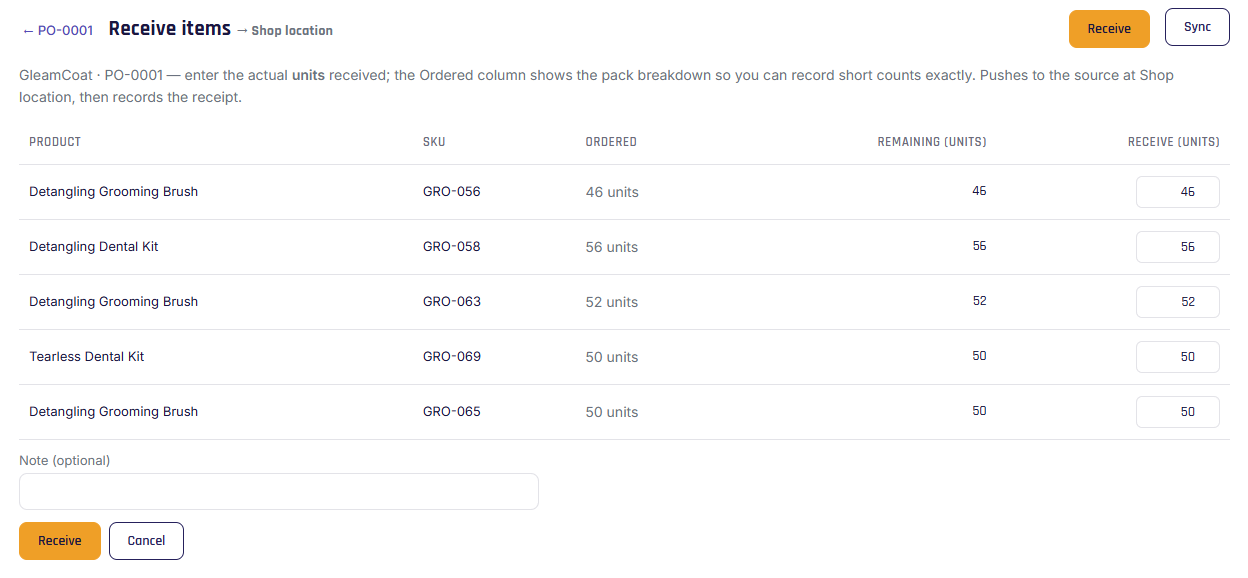
How to receive
- Open an Ordered or Partial PO and click Receive.
- Each line shows the expected quantity, pre-filled. Enter the quantity you actually received (full or partial).
- Click to commit the receipt.
When you commit, Stockwik pushes the new stock to Shopify first (increasing on hand at the destination location), then records the receipt locally — so Shopify and Stockwik stay in step.
Partial and short receipts
If you receive fewer units than ordered, Stockwik asks what to do:
- Keep open for more — the PO stays Partial, ready to receive the rest when a later shipment arrives.
- Close as-is — finish the PO now.
Costs update automatically
Receiving sets each product's unit cost to that receipt's cost and pushes it back to Shopify's "Cost per item," so your inventory value and margins stay accurate.
Receiving history
Each PO keeps a receiving history — every receipt with its date, who received it, quantities, and per-line variance — so you can see exactly what arrived and when.
Note
Receiving is safe to retry. If a submission is interrupted, Stockwik recognizes the repeat and won't double-count the stock into Shopify.