
Inventory list & views
The Inventory page is your product catalog, mirrored from Shopify and enriched with planning data. It has several views that slice your products by what needs attention.
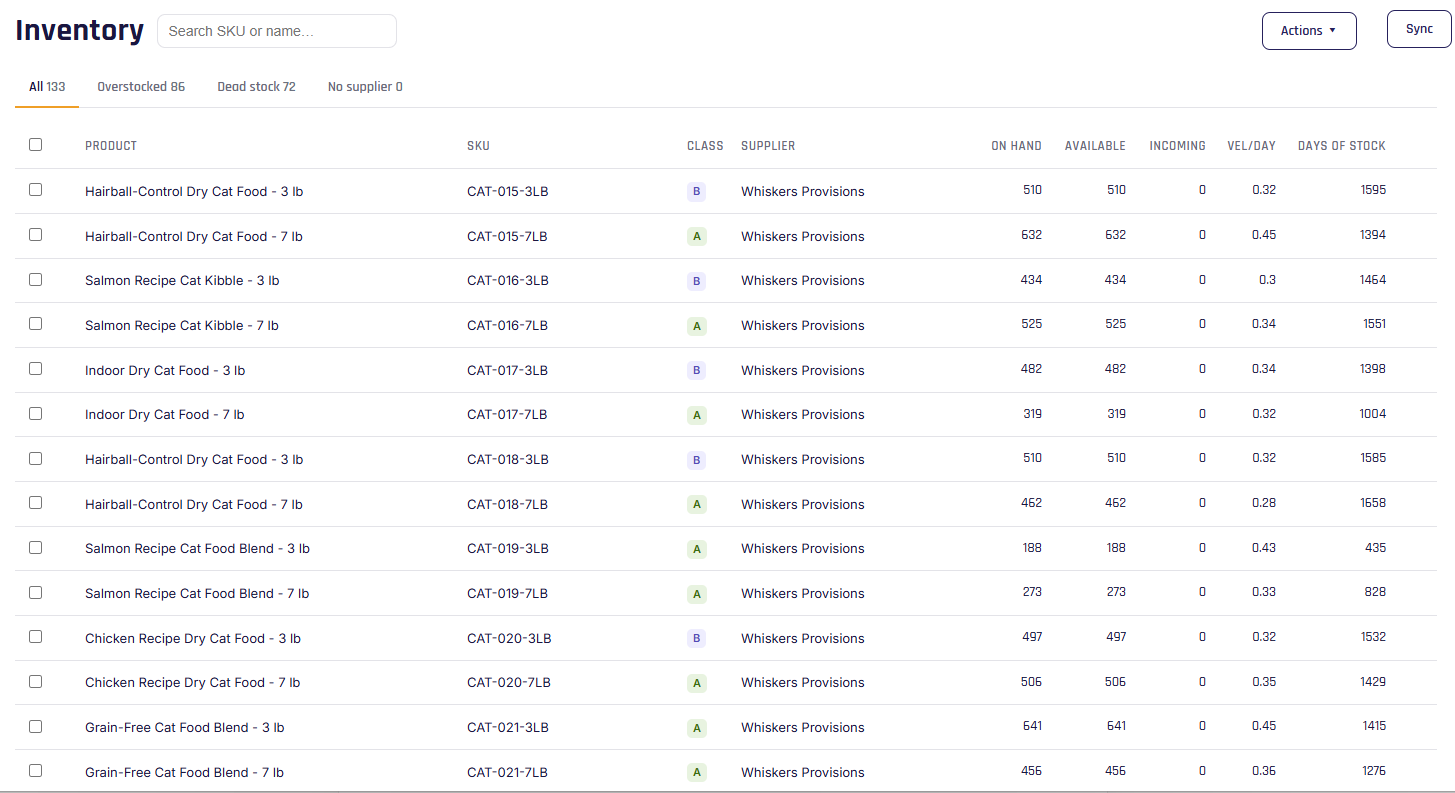
The views
- All — every product, with its planning picture: supplier, ABC class, on hand, available, incoming, velocity, and days of stock.
- Overstocked — products above their suggested maximum, with the excess units and the cash that excess ties up.
- Dead stock — in-stock products that aren't selling (never sold, or so slow they'd take many months to clear), with how long they've been idle and the value sitting still.
- No supplier — products that need reordering but have no buy option yet, so Stockwik can't suggest an order for them. Add a supplier/buy option to bring them into your reorder list.
Reading the columns
Common columns include On hand and Available (see the inventory model), Incoming (on open POs), velocity and days of stock (see velocity), and the reorder status (see reorder levels).
Finding and organizing products
- Search by SKU or product name.
- Sort by clicking any column header (click again to reverse).
- Resize columns by dragging the divider between headers — widths are remembered.
- Select products with the checkboxes (the header checkbox selects everything in the current view, across pages).
- Paginate through large catalogs at the bottom; your selection carries across pages.
The Actions menu
Top-right, Actions lets you:
- Export CSV — your selected products (or the whole view), with the full planning picture.
- Import products — bulk-update costs and planning overrides.
- Download import template — the expected columns with examples.
See Import & export inventory for details.
Tip
Click any product name to open its detail page, where you can edit costs, set per-product overrides, and manage its buy options.