
Managing suppliers
Suppliers are who you buy from. Their details — especially lead time — feed directly into your reorder timing and appear on the purchase orders you send.
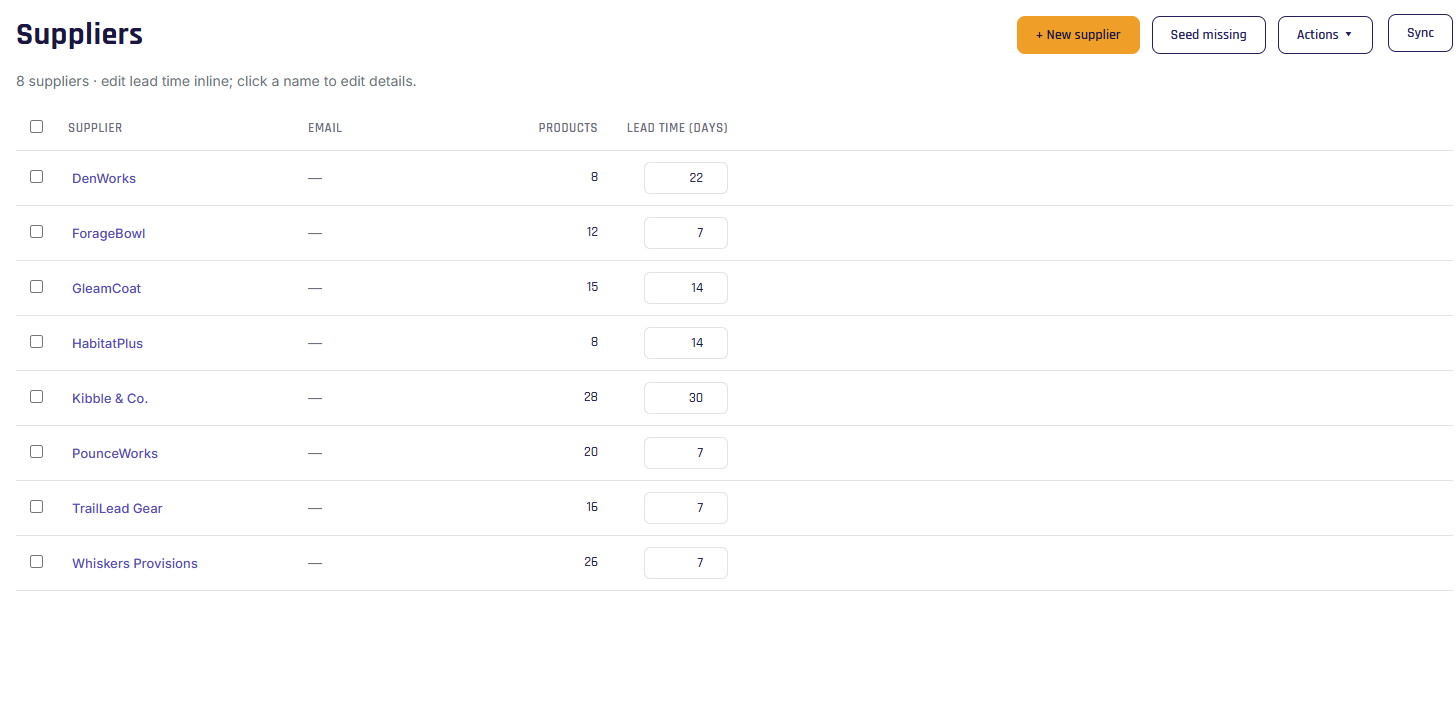
The suppliers list
Shows each supplier's name, contact email, the number of products that use them, and their lead time (editable right in the list). Click a name to open the full detail page.
Supplier details
A supplier record holds:
- Name (required).
- Lead time (days) — how long they take to deliver after you order. This drives the reorder point for every product that uses this supplier. (Defaults to 7 if unset.)
- Contact — account number, website, contact name, email, phone. The email is where emailed POs are sent (and the reply-to).
- Address — used as your details on purchase orders.
- Currency and payment terms.
- Special instructions — printed on every PO to this supplier (e.g. "Call before delivery").
- Internal notes — for your team; never shown on POs.
- Archived — hide a supplier you no longer use.
Seeding suppliers from Shopify
On your first sync, Stockwik creates a supplier for each vendor on your products (name only — Shopify doesn't share more). If you add products with new vendors later, click Seed missing to fill in any gaps. It only adds what's missing and never overwrites details you've entered.
Buy options & POs on a supplier
A supplier's detail page also lists the buy options that use it and its recent purchase orders, so you can see everything tied to that vendor in one place.