
Create POs from suggestions
The fastest way to raise purchase orders is straight from your reorder list. Select what you want, and Stockwik drafts the POs for you — grouped by supplier.
Steps
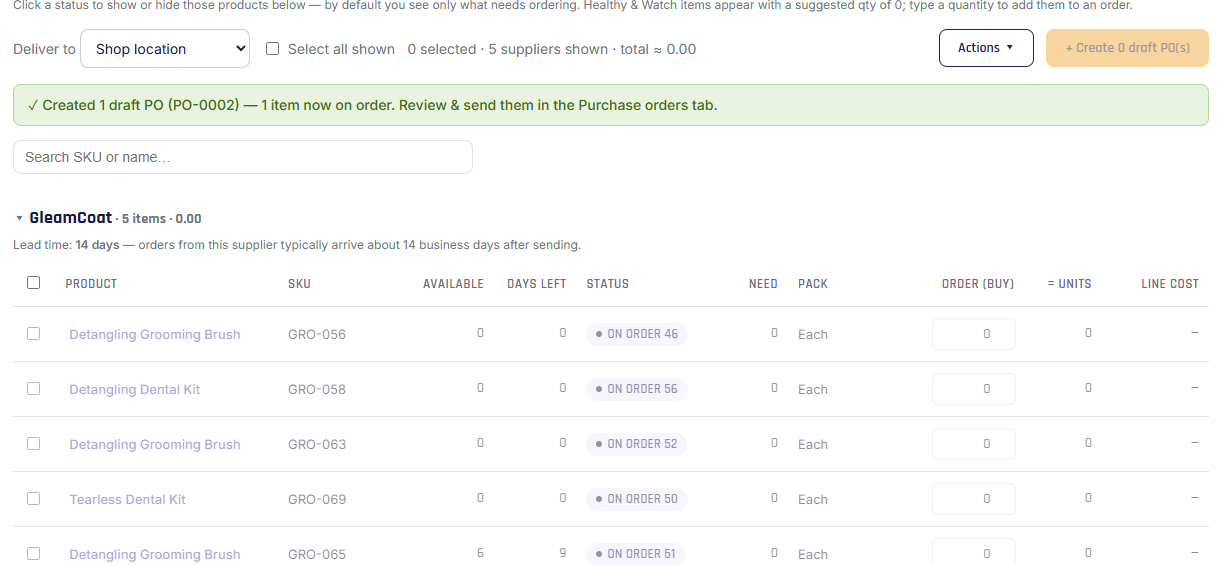
- On the Reorder page, set your destination location.
- Select the lines you want to order (use the checkboxes, or "Select all shown"). Adjust the Order (buy) quantity on any line if needed.
- Click Create draft PO(s). Stockwik creates one draft purchase order per supplier in your selection, delivering to the chosen destination.
- A confirmation shows the PO numbers created. Head to Purchase orders to review, then send them.
Note
New POs are created as drafts — nothing is sent to a supplier until you review and mark them as ordered. See Creating & editing POs and Sending a PO.
What gets carried over
Each draft line uses the product's primary buy option — its supplier, pack, units per pack, and cost — and the supplier's lead time sets the expected delivery date. These details are snapshotted onto the PO at creation, so later edits to a buy option's cost won't retroactively change an existing PO.
Tip
Creating POs is a Growth-and-up feature. On Starter you can still see all the suggestions; upgrade to turn them into orders. See Plans & features.